



How do I check-in for Key Results?
Category: OKRs
Profi.co allows you to report your progress on your key results at different OKR levels.
Why are key result check-ins important?
Table of Contents
Key result check-ins are fundamental to effective OKR management and accountability. Here's why this feature matters:
- Progress Tracking: Check-ins enable you to input a metric-related value to accurately measure your Key Result progress.
- Confidence Indication: It gives you the chance to indicate your key results status (or how confident you are that you'll be able to complete it).
- Context and Communication: Additionally, you can add comments to provide context for those tracking your KRs, enabling better collaboration and transparency.
- Real-Time Visibility: Keep stakeholders informed about current progress
- Early Warning System: Identify risks and obstacles before they become critical
- Accountability: Demonstrate commitment to achieving objectives
What is a key result check-in?
A Key Result check-in is a regular update where you record progress toward your Key Result target. It serves as the primary mechanism for tracking OKR progress in Profi.co.
Key Components of a Check-in:
- Progress Value: The actual metric or completion percentage
- Status: Your confidence level in achieving the Key Result
- Comments: Context, updates, challenges, or wins
- Timestamp: When the check-in was recorded
- Optional Attachments: Files, audio, or video supporting your update
Check-ins create a historical record of progress, helping teams understand trends, identify patterns, and make data-driven decisions.
How do I perform a Key Result check-in?
There are two main methods to check in on your key results:
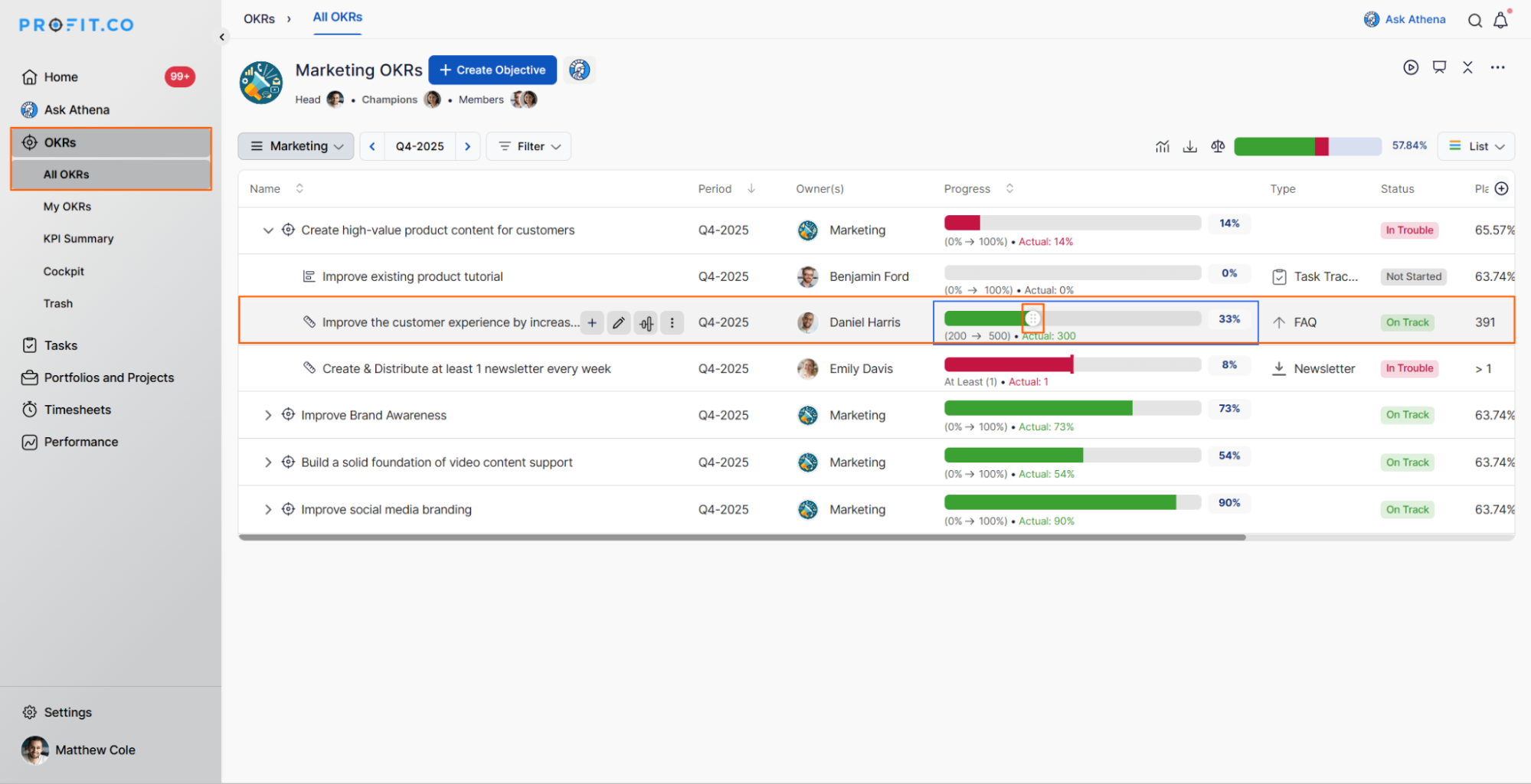
Method 1: Check-in from OKR List View
Step 1:
- Navigate to OKR from the left navigation panel
- Locate the required Key Result you want to update
- Slide the Progress bar of the Key Result to record your progress
Step 2:
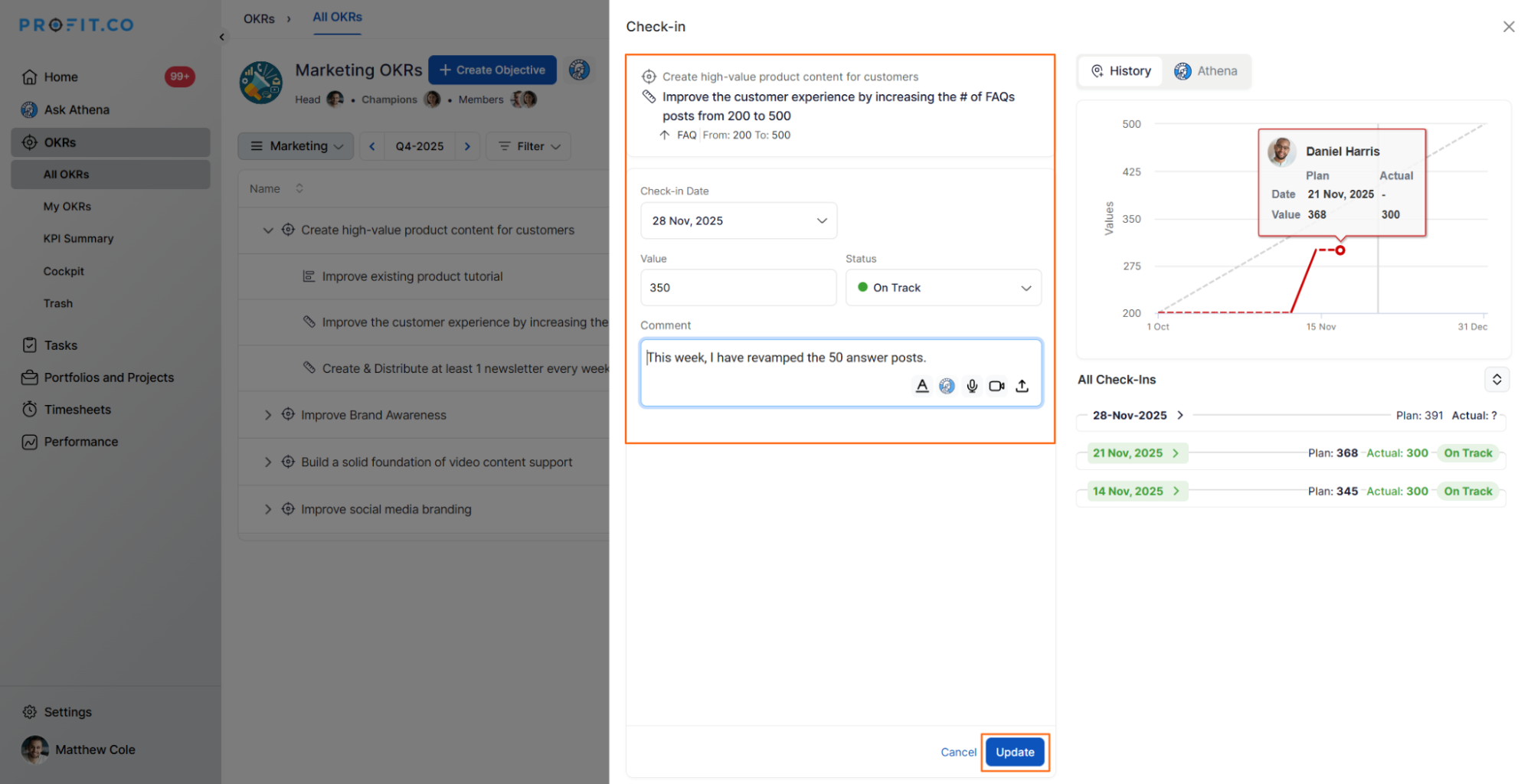
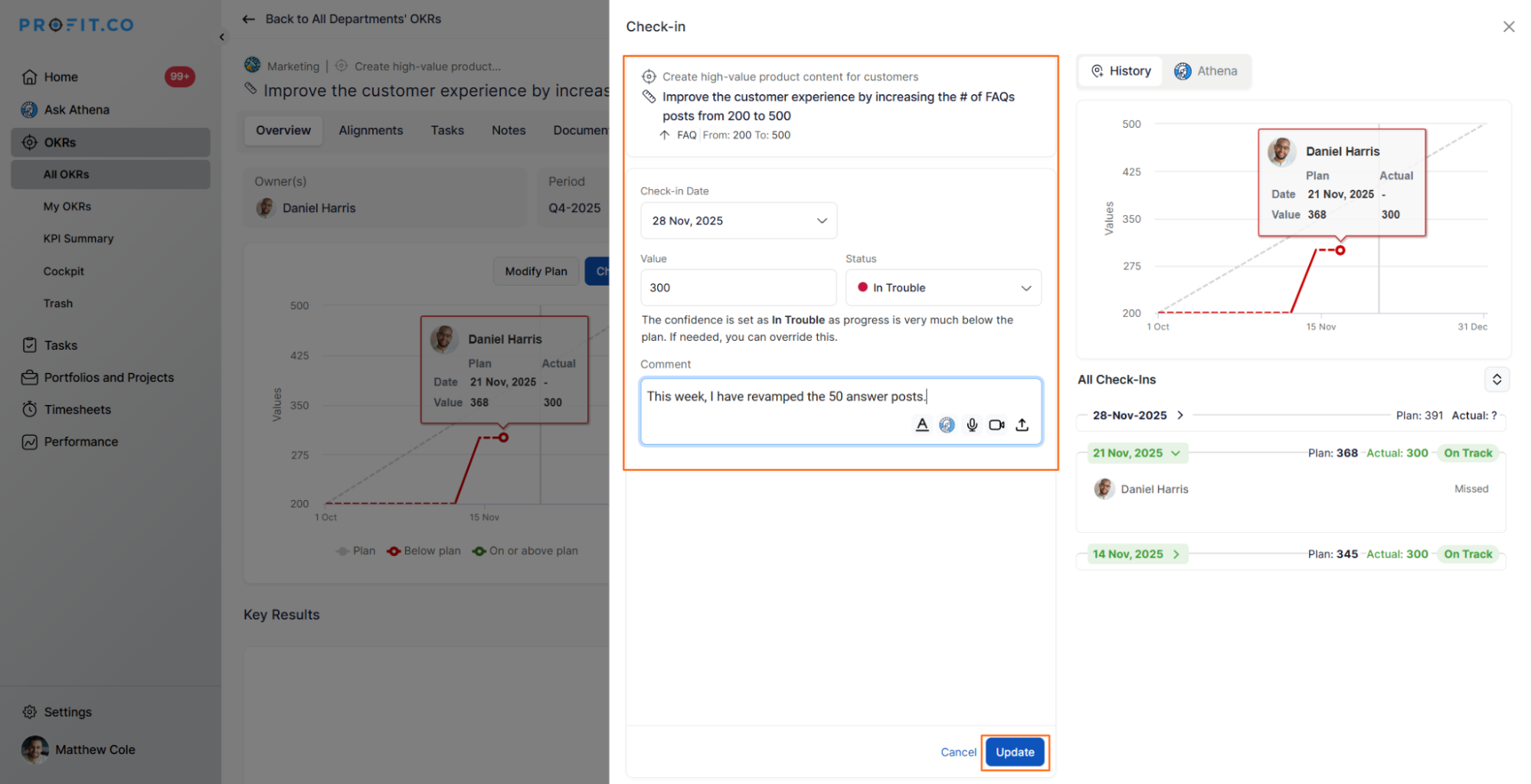
A check-in side panel will open where you can provide:
- Progress value: Enter your current metric or percentage
- Status of the Key Result: Indicate your confidence level
- Comments: Add context, updates, or notes
- Click Update to save your check-in
Method 2: Check in from the Key Result View Page
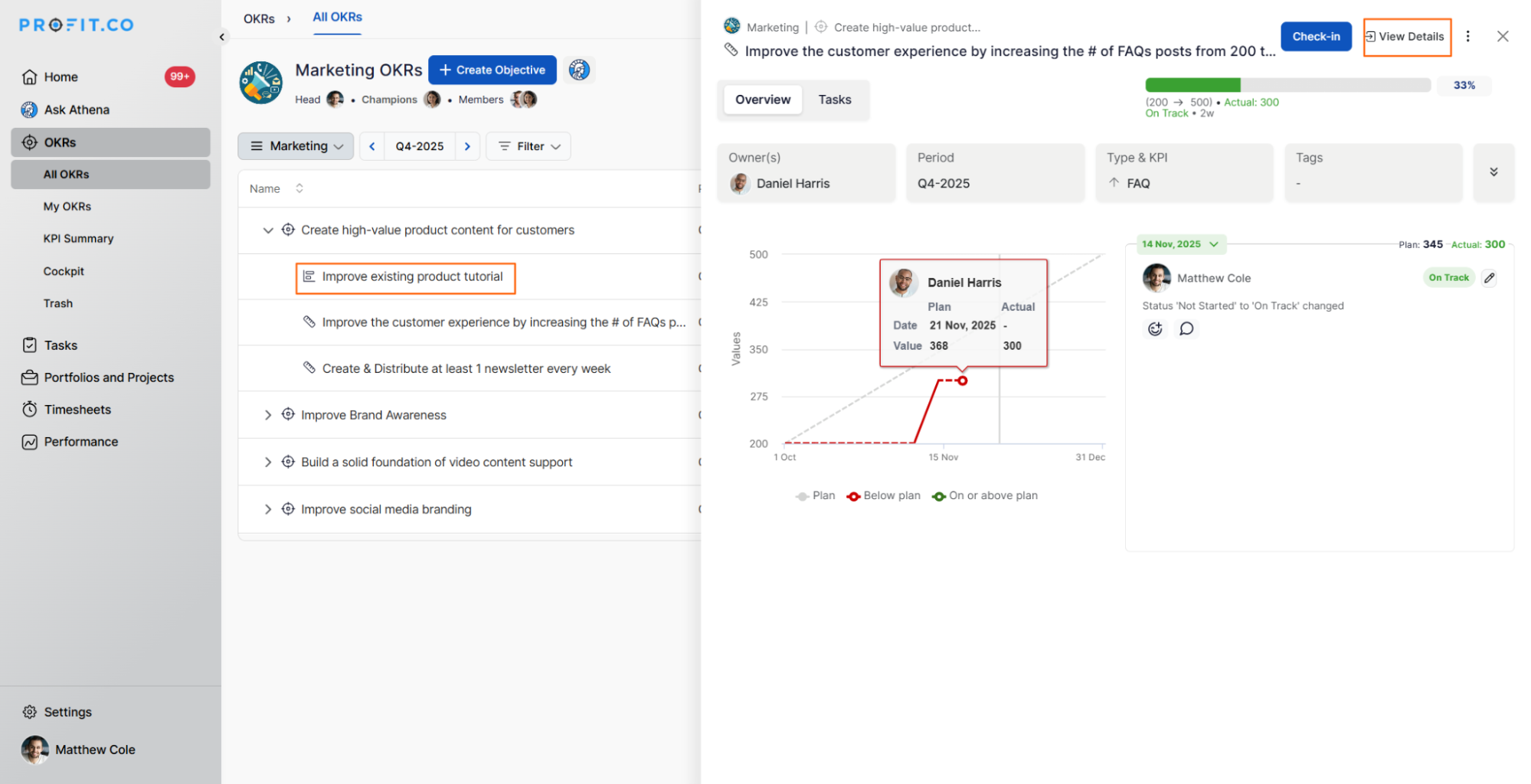
Step 1:
- Click on the desired key result.
- Click on View Details
- In the Key Result overview page, locate the Check-in section
- Click on Check-in
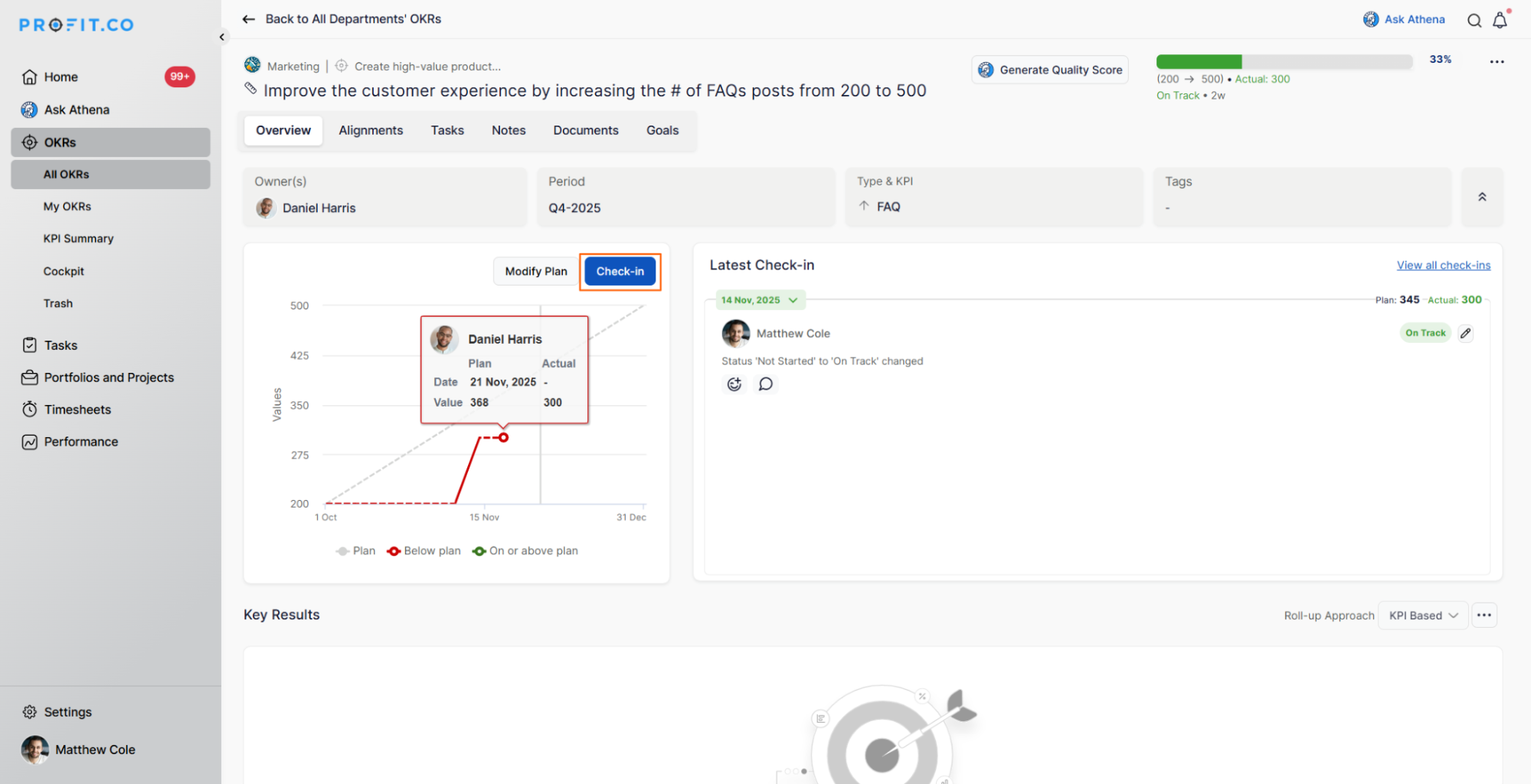
- Record the progress and click Update
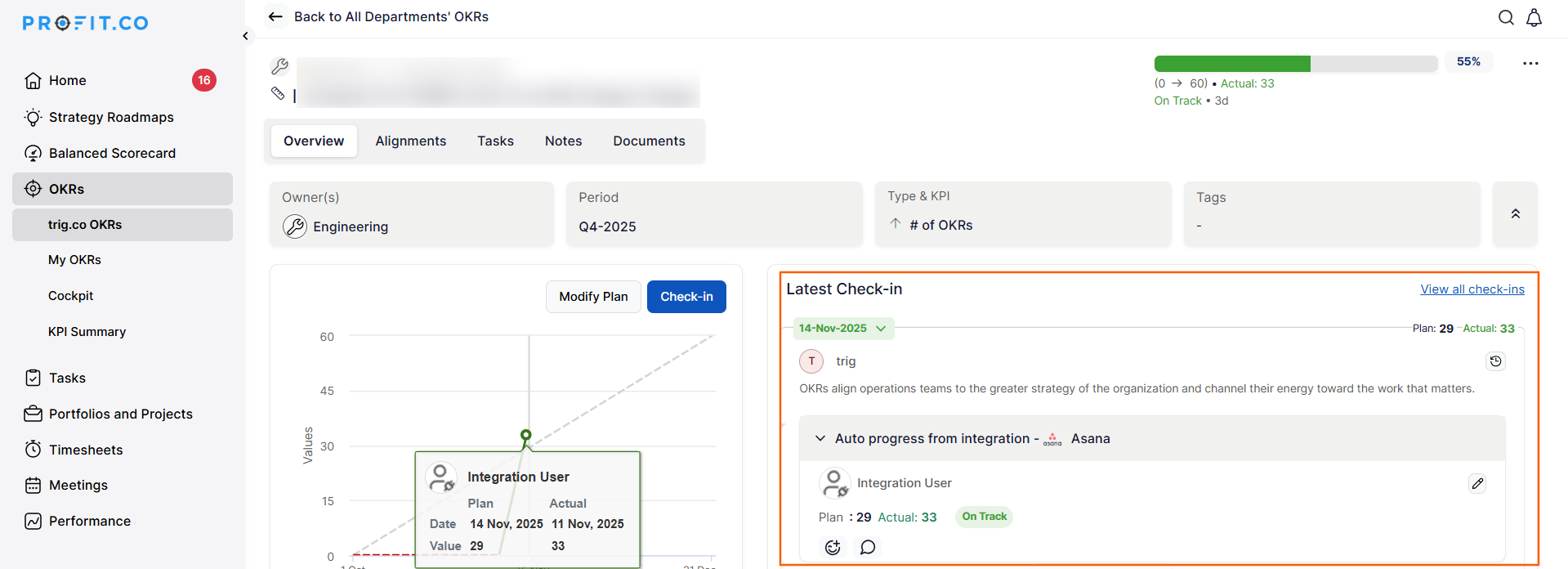
Note: When you integrate the KR with a third-party application, both manual and integration check-in comments are now displayed together in the same check-in panel.
What are the different check-in formats available?
Profi.co offers multiple ways to record your check-ins:
Text-Based Check-in (Standard):
- Enter progress value, status, and written comments
- Quick and straightforward
- Best for routine updates
Audio Check-in:
- Record a voice update for your key result.
- Useful when you want to provide detailed context verbally
- Saves time compared to typing long updates
- Adds a personal touch to communication
Note: You can also perform check-ins using the audio or video option.
Video Check-in:
- Record a video update for your key result.
- Ideal for demonstrating progress visually
- Great for presenting results or demos
- Enhances team connection in remote environments
File Attachments:
- Attach supporting documents, spreadsheets, or reports
- Provide evidence or additional context
- Share relevant resources with your team
Note: You can attach the file directly to the comment box.
Choose the format that best communicates your progress and fits your team's culture.
When and how often should I check in?
Recommended Check-in Frequency:
- Weekly Check-ins (Most Common)
- Bi-Weekly Check-ins
- Monthly Check-ins (Minimum)
Best Practices for Effective Check-ins
- To maximize the value of your Key Result check-ins:
- Gather Data First: Have your metrics ready before starting check-in
- Review Last Check-in: Understand what you committed to previously
- Consider Context: Think about external factors affecting progress
- Celebrate Wins: Acknowledge achievements, even small ones
- Flag Blockers: Clearly identify obstacles requiring help
- Request Support: Ask for specific assistance when needed
Related Questions
To know more about how to edit check-in, click here
Frequently Asked Questions
Set up calendar reminders for your check-in schedule.
If you'll be away during your regular check-in cycle, either check-in before you leave or coordinate with your manager about expectations during your absence.
Click the audio or video option in the check-in interface, record your update, and submit.
Related Questions
-
What does Control KPI imply?
Table of Contents Why this feature? What is a Control KPI? Progress Calculation Types in Control KPI Value ...Read more
-
How does the Reflect/Reset Auto-Completion option work in Profit.co?
Profit.co now provides an option to automatically complete Objectives at the end of their defined period or continue ...Read more
-
How do I manage Key Results directly in the Bowler Chart View in Profit.co?
In Profit.co, the Bowler Chart View now allows users to create, edit, delete, and access quick actions for Key Results ...Read more
-
How do I view user login history in the Cockpit?
Profit.co has introduced three new widgets within the OKR Cockpit to help organizations monitor user login behavior and ...Read more